
How to Install on Apple
iPhone and iPad. Follow these four pictures. Safari only — Chrome on iPhone cannot put Range Log on the Home screen.
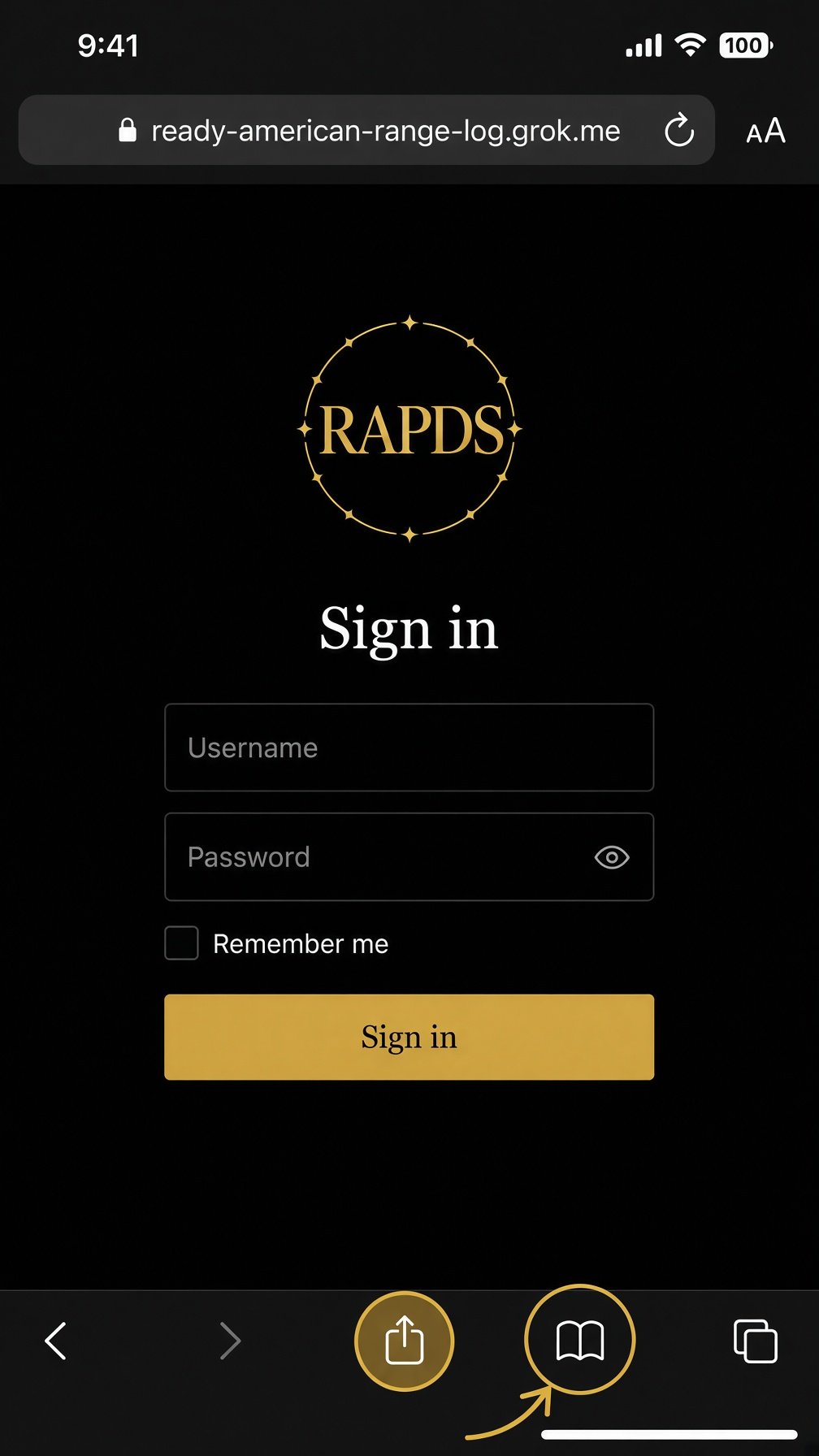
Step 1
Open in Safari
Open www.rapds.com/range/log in Safari (the compass icon). Not Chrome, not Instagram, not a text preview. Tap the Share button (square with the arrow up) at the bottom.
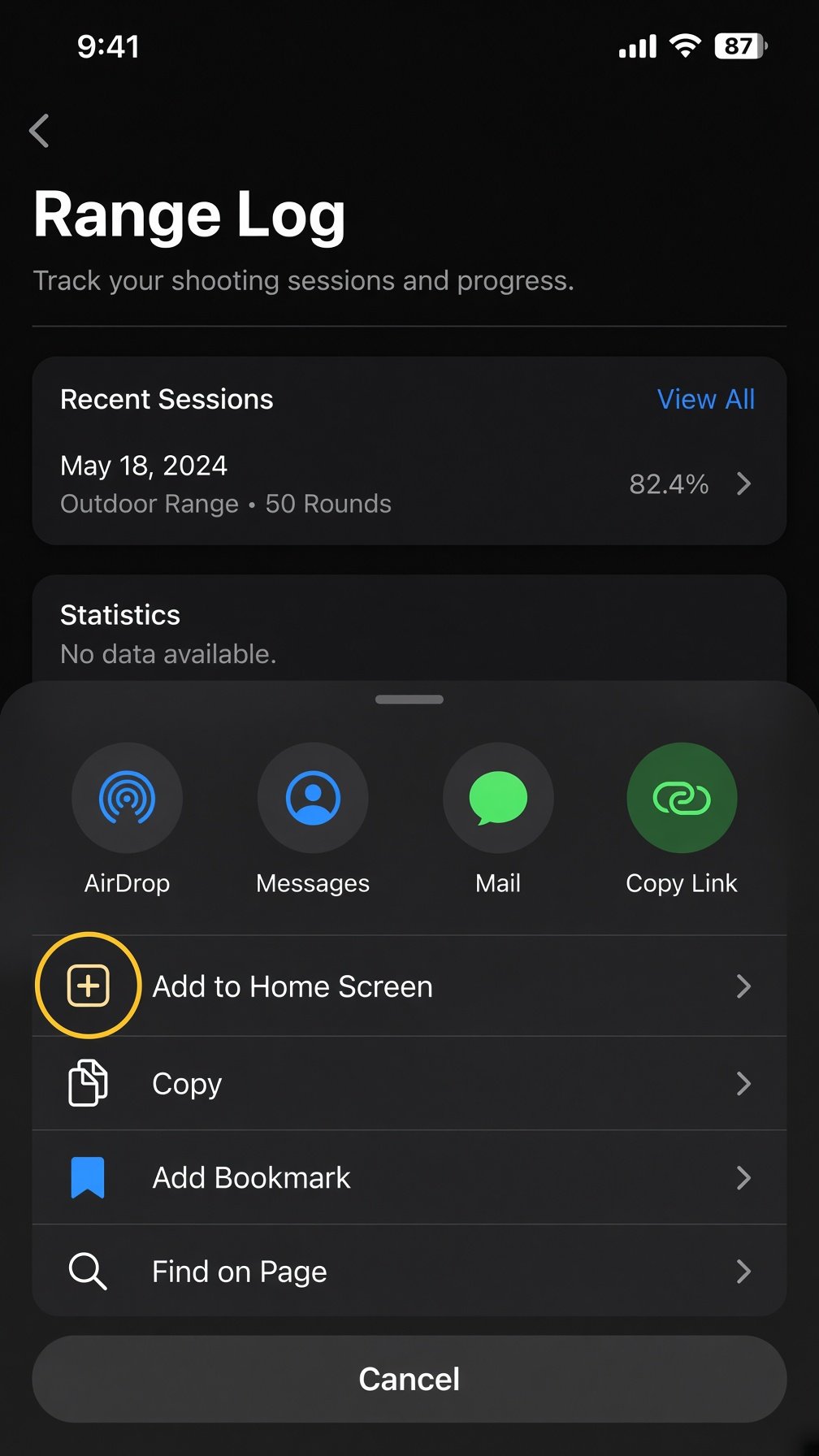
Step 2
Add to Home Screen
In the share list, scroll if you need to. Tap Add to Home Screen.
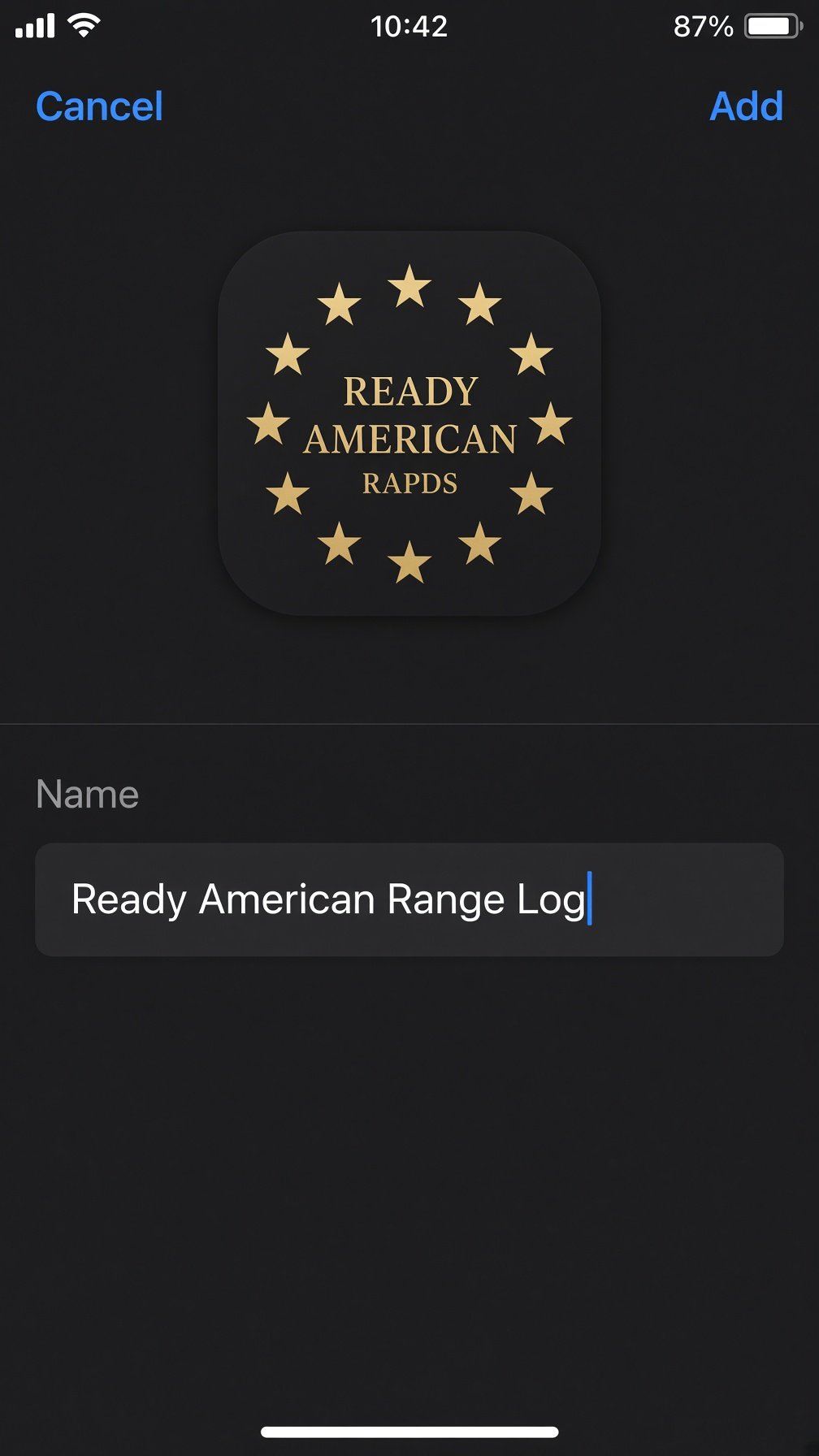
Step 3
Tap Add
The name should say Ready American Range Log. Tap Add in the top-right.
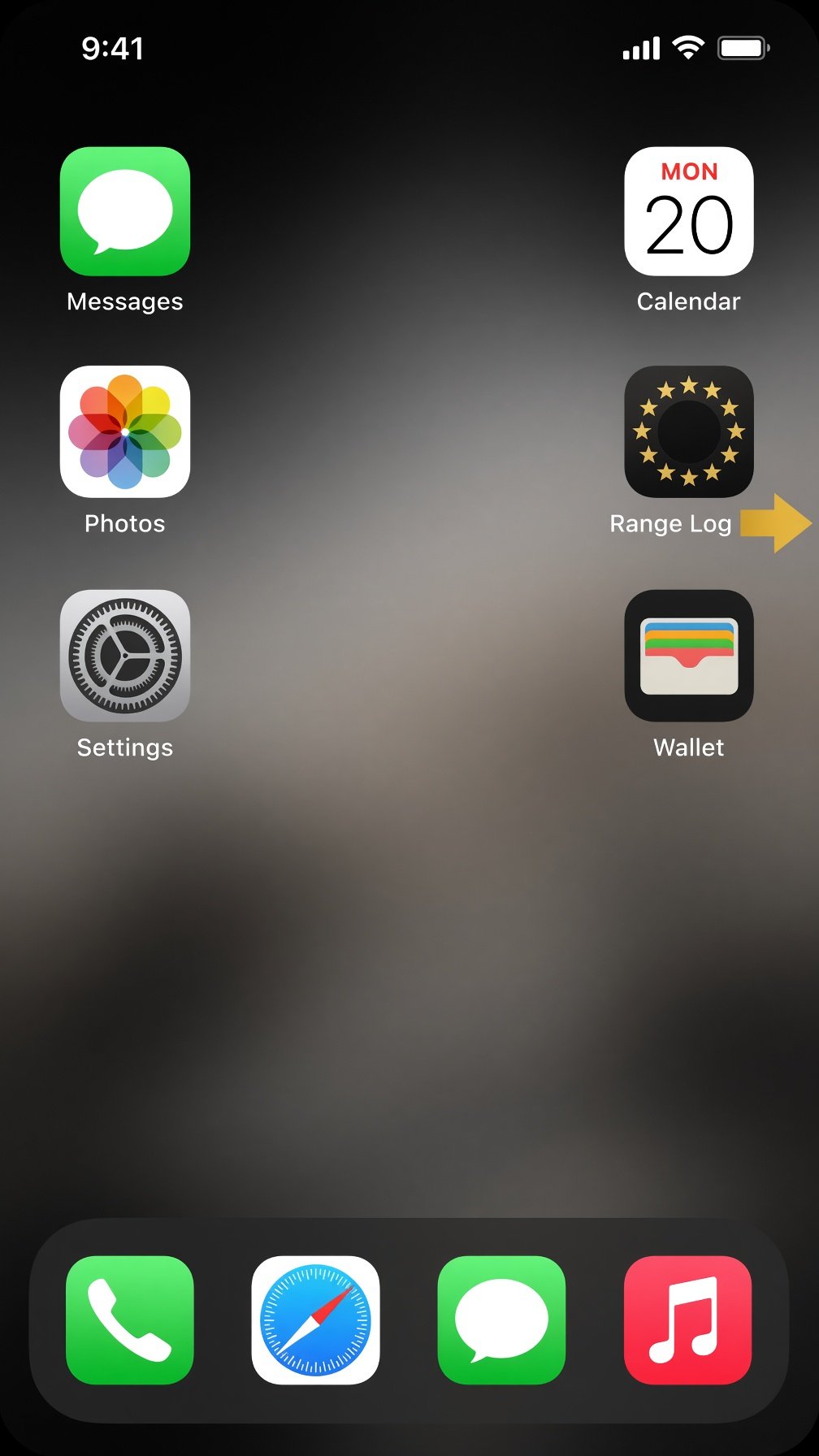
Step 4
Open from the Home screen
Leave Safari. Tap the Range Log tile on your Home screen. Sign in from there.
You do not see Add to Home Screen
- You are not in Safari. Close Chrome / Instagram / Messages. Open the Safari app (compass). Paste www.rapds.com/range/log.
- Tap Share (square with the up arrow) at the bottom of Safari — not the three dots in Chrome.
- Scroll the share list. Add to Home Screen is below Copy and Add Bookmark.
- If the tile still says Grok App: delete that icon from the Home screen, then add again from Safari.